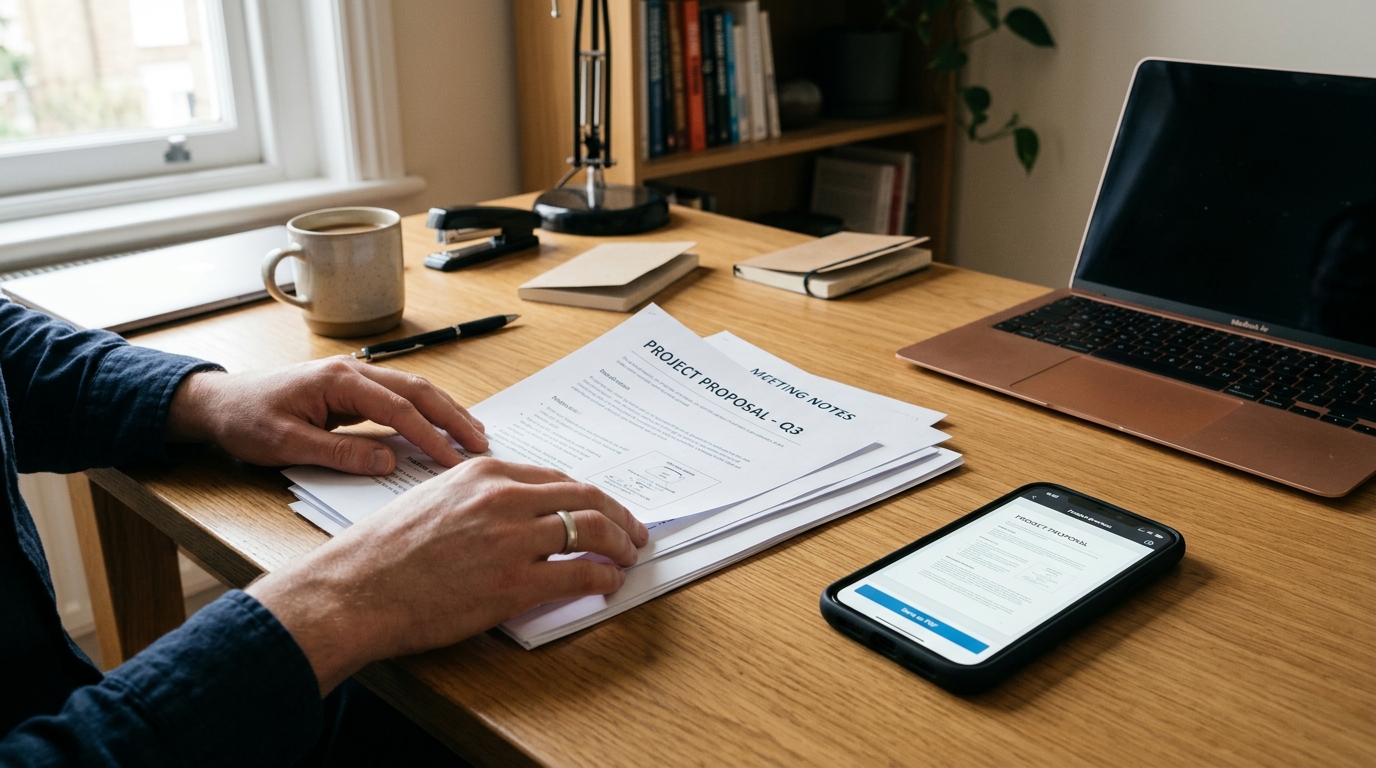
Most people do not need a full office setup to handle documents well. If your real goal is to convert to pdf, turn jpg to pdf images into a usable file, organize pdf photos, or make quick edits before sending a document, a phone-based workflow is often faster than opening a laptop. A pdf editor on mobile is simply a tool that lets you create, adjust, and prepare documents from images or files, and it is especially useful for people who need to send forms, IDs, invoices, or signed pages while away from a desk.
I work on document and file systems, so I pay close attention to where users lose time. In practice, it is rarely the actual conversion step that causes trouble. The friction usually comes earlier: poor image capture, pages in the wrong order, oversized files, or using the wrong tool for the job. That is why the better question is not “How do I convert this?” but “What is the cleanest way to go from image to usable document?”
The app question first: what is FAX Send Receive (ad-free) App?
FAX Send Receive (ad-free) App is a mobile application for iPhone and Android that helps people send and receive fax documents from their phones instead of relying on a physical fax machine. It is best suited to users who handle occasional to regular paperwork on mobile, especially freelancers, small business owners, field workers, tenants, patients, and anyone sending signed forms or scans while away from an office.
If your process starts with paper or phone images and ends with a faxed document, the conversion step matters more than many people expect. A clean photo-to-document flow reduces failed submissions, unreadable pages, and manual rework.
Myth #1: “A pdf editor is only for changing text inside a PDF”
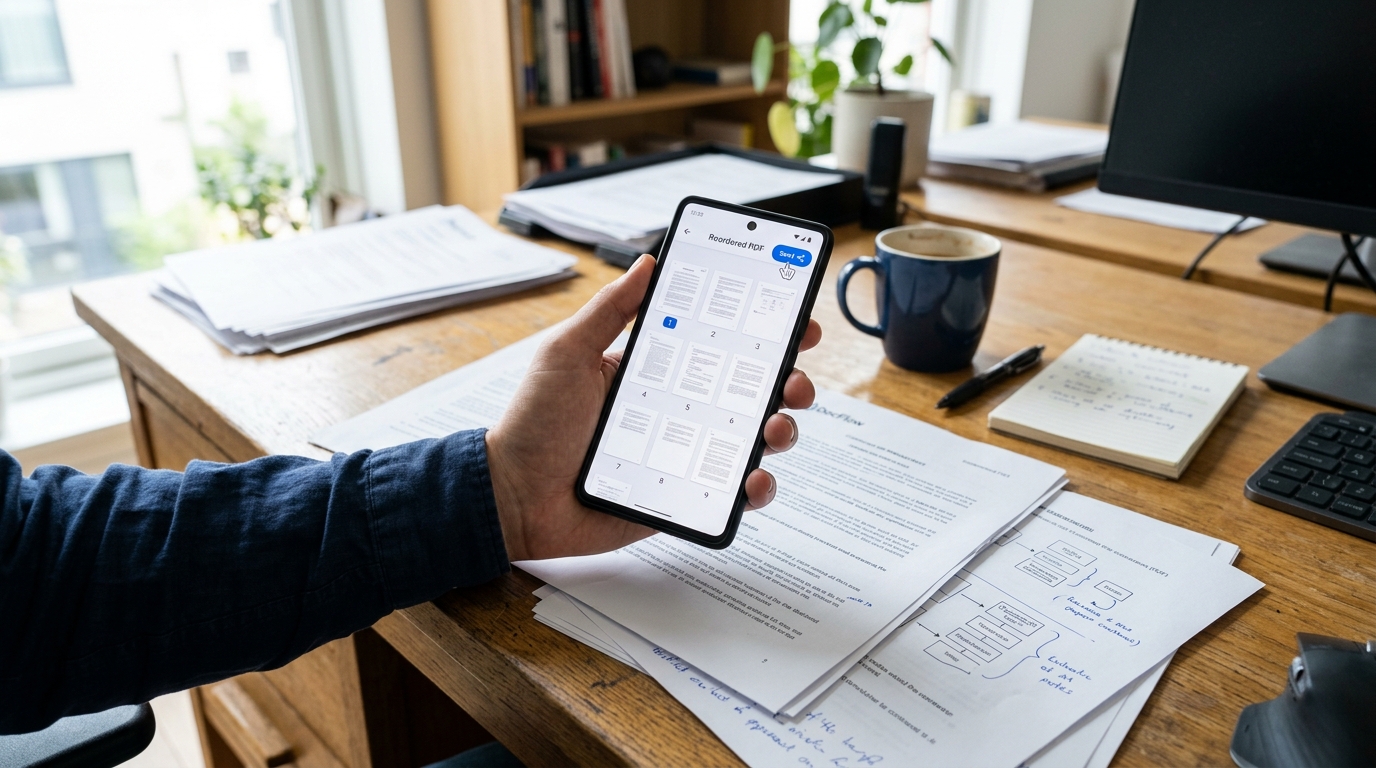
This is probably the most common misunderstanding I see. People hear “pdf editor” and imagine complex desktop software for rewriting paragraphs or redesigning contracts. But in everyday use, a pdf editor is often much simpler. It helps you reorder pages, rotate scans, crop edges, combine files, and prepare a document so it looks intentional rather than improvised.
For many users, that is enough. If you photographed a form in uneven lighting, captured two pages upside down, and need to send them quickly, basic editing is the difference between a usable submission and a messy one. Unlike a generic image gallery, a document-focused workflow treats each page as part of one file rather than as disconnected photos.
This is where mobile tools differ from old habits. A traditional approach might involve taking a picture, emailing it to yourself, opening it on a computer, using a converter, then exporting again. A phone-first approach can handle scan, cleanup, page order, and output in one place. If you want that simpler path, FAX Send Receive (ad-free) App is designed around document handling rather than casual photo storage.
Myth #2: “JPG to PDF is a one-click job, so quality does not matter”
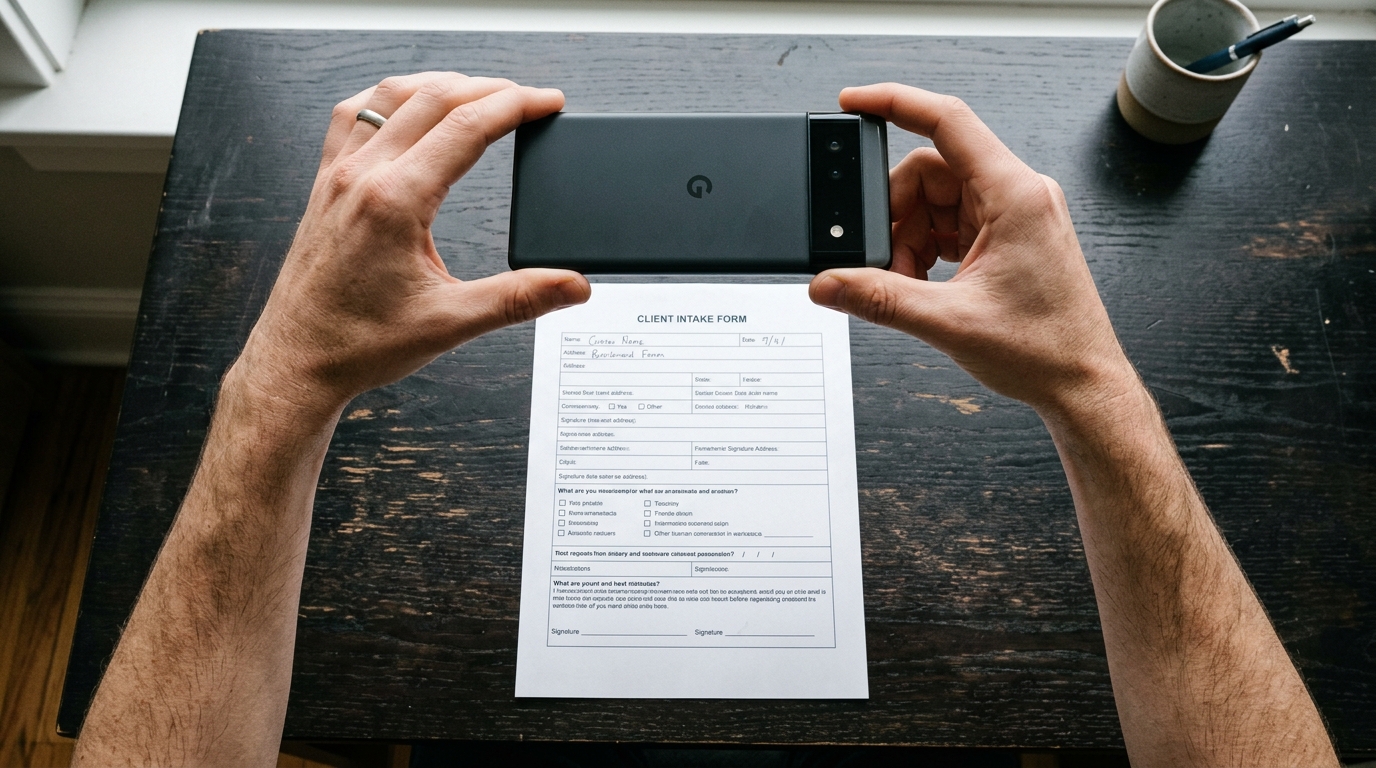
Technically, yes, you can convert jpg to pdf in seconds. But a fast conversion does not guarantee a readable document. I have seen many cases where the output file exists, yet the result is still wrong for real use: text is blurry, shadows cover key fields, edges are cut off, or the pages are arranged in the wrong sequence.
When people search for jpg to pdf, what they usually want is not merely a changed file format. They want a document someone else can read, accept, print, or archive. That means quality starts before conversion.
Here are the most common mistakes:
- Taking photos at an angle instead of straight overhead
- Using dim room light that creates gray, low-contrast pages
- Including background clutter around the paper
- Mixing receipts, forms, and IDs into one file without order
- Exporting huge files when a cleaner scan would create a smaller PDF
A good rule is simple: first capture clearly, then convert. In practice with document workflows, users blame the converter when the real issue started with the image.
What actually matters when you convert photos to PDF?
Selection criteria matter more than brand names. If you are comparing tools for photos to pdf or need a quick way to convert to pdf, these are the factors I would prioritize:
- Capture quality: Does it help you create readable pages from camera images?
- Page control: Can you reorder, rotate, or remove pages easily?
- Output clarity: Do the exported files preserve text legibility?
- File size balance: Is the PDF small enough to send without destroying quality?
- Workflow fit: Can you move from scan to send without switching between multiple apps?
- Pricing clarity: Is the app straightforward about what is free, paid, or limited?
People often compare a document app with a general cloud drive, a photo album, or a desktop utility. That comparison is not always fair. A general storage tool keeps files; it does not necessarily help prepare them well. A desktop converter may offer more controls, but it is slower when the source document is already in your hand and your phone is the camera.
Myth #3: “Photos to PDF is only useful for students or office workers”
Not at all. Some of the most practical uses are outside formal office settings. Think about a renter sending a signed lease page, a patient submitting insurance documents, a contractor sending an invoice from a job site, or a traveler forwarding copies of forms while away from home. In all of those situations, photos to pdf is not a niche feature. It is the shortest path from paper to an accepted document.
That is also why phone-based fax workflows still matter. Many institutions still ask for faxed paperwork, especially for records, authorizations, and signed forms. When the source starts as paper, converting images into a clean PDF before sending is often the most reliable route.
The main value is replacing the old dependency on a physical machine. I would add one more point: replacing the machine only works well if the document you create on your phone is actually readable.
Who benefits most from this kind of workflow?
The strongest fit is for people who need to handle documents quickly without returning to a desk:
- Freelancers sending contracts or invoices
- Small business owners managing forms on the go
- Field staff who capture paperwork on-site
- Students submitting signed pages
- Patients or caregivers sending medical forms
- Anyone who occasionally needs fax without owning a machine
Who is this not for?
If you spend all day doing advanced document layout, heavy legal redlining, or precise desktop publishing, a mobile-first pdf editor may feel limited. It is also not ideal for users who want deep offline archival systems or large-team document governance. This kind of app is best for practical document handling, not enterprise document management.
Myth #4: “PDF photos always look professional once they are in a PDF”
Putting images into a PDF container does not magically make them document-grade. I think this is where the phrase pdf photos confuses people. A PDF can contain excellent pages or terrible ones. The format is not the quality standard; the preparation is.
To improve pdf photos before you send them, I recommend a short checklist:
- Place the paper on a flat, dark, non-reflective surface
- Use even light from two sides if possible
- Keep the phone parallel to the page
- Review every page before export
- Check the final PDF at full zoom, not just thumbnail size
This matters even more if the next step is fax. Fax transmission can reduce clarity compared with the original image, so starting with a clean, high-contrast document gives you more margin for error.
A few practical questions I hear often
Can I use ordinary phone photos and still get an acceptable PDF?
Yes, if the photos are sharp, evenly lit, and properly cropped. Random camera shots from a cluttered table usually create problems.
Is a document scanner app better than a generic converter?
Usually, yes. A document scanner or PDF scanning app is built to detect edges, improve contrast, and organize pages. A basic converter often just wraps images into a PDF without fixing anything.
When should I choose scan to PDF instead of importing existing images?
If the paper is in front of you, scan to PDF is often better because the app can optimize the page at capture time. Imported images are fine when the photos already exist and are clear.
Do I need a separate tool for fax after I convert to PDF?
Not always. If your goal is to create a PDF and send it onward in the same workflow, it helps to use an app designed for both steps.
Myth #5: “Any document app will handle PDF creation equally well”
They will not. Some apps are really storage utilities. Some are image cleanup tools. Some are built around document scanner tasks. Others focus on the final send step. The right choice depends on what happens before and after conversion.
If your job is simply to archive family photos, almost any tool can work. But if you need to convert to pdf, check the pages, and then send them as formal documents, the differences become obvious. Page ordering, readability, export speed, and sending options suddenly matter.
This is also why broad comparisons with generic alternatives are more useful than chasing labels. A camera app can take the image. A cloud folder can store the file. A desktop tool can convert it later. But a document-centered mobile app reduces handoffs, and fewer handoffs usually mean fewer mistakes.
I see the same pattern across document systems: better inputs create better outcomes. I would extend that logic to editing and conversion too. The best workflow is not one feature; it is a chain where each step supports the next.
How I would choose a tool for this job
If I were choosing for myself based on day-to-day reliability, I would ask four plain questions:
- Can it turn paper or images into a readable PDF without extra cleanup?
- Can I correct page order and orientation quickly?
- Can I send or share the file immediately after export?
- Will the app stay out of the way when I only need to handle one document fast?
That last point gets overlooked. Many users do not want a giant document system. They want a practical app that helps them handle documents from their phone, especially when a fax sending or receiving task appears unexpectedly. For those users, simplicity is not a luxury feature. It is the whole point.
FAX Send Receive (ad-free) App fits that use case well because it is built for people replacing a physical fax machine with a phone-based process. Not everyone needs that. But if your real problem is turning pages, scans, or phone images into sendable documents, that is the kind of workflow it addresses.
For a broader look at the team behind apps in this space, the Codebaker app portfolio gives useful context around mobile document and communication tools.
Final thought: the file format is not the finish line
The reason people search for pdf editor, jpg to pdf, photos to pdf, pdf photos, or convert to pdf is usually not format curiosity. They are trying to complete a real task: submit a form, send a record, fax a signed page, or keep a document usable. Once you see that, most myths fall away.
A good document workflow is not about producing a PDF as fast as possible. It is about producing one that is clear, ordered, easy to send, and accepted the first time.