
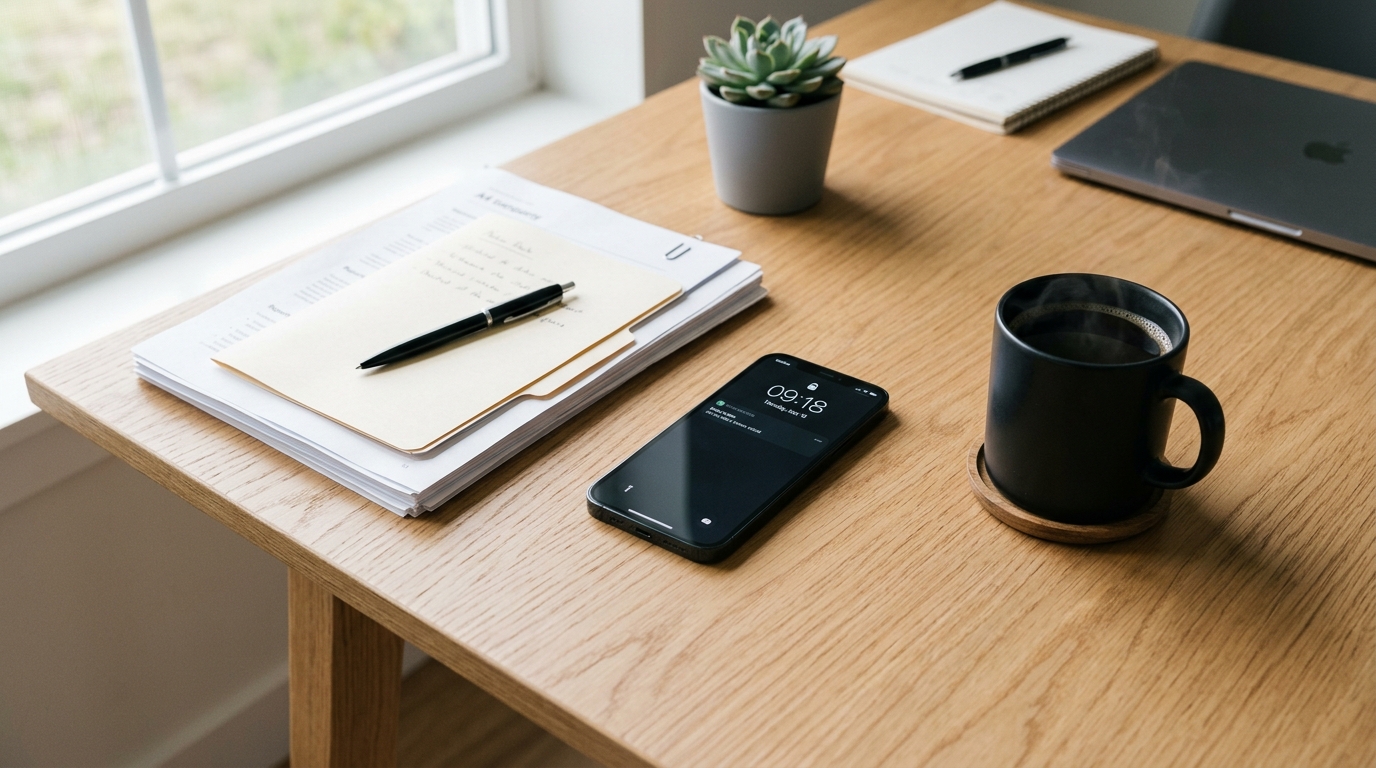
According to the recently published Adjust Mobile App Trends 2026 report, global mobile app consumer spend reached $167 billion last year as users aggressively migrated their analog tasks to integrated software. FAX Send Receive (ad-free) App directly serves this shift by acting as a mobile utility that allows users to bypass physical machines, secure their data, and transmit digital paperwork securely from their phones. While much of the 10% global surge in app installs is attributed to gaming and e-commerce, my work as a UX researcher focusing on mobile productivity reveals a structural change in how we manage professional paperwork.
We are finally moving away from treating our phones simply as communication devices. They are now the primary infrastructure for independent work. Adjust’s 2026 data also points to a rise in App Tracking Transparency (ATT) opt-in rates, hitting 38% in the first quarter. This tells me that users are becoming highly deliberate about their privacy and the tools they trust. Replacing physical machinery with a mobile solution requires more than just downloading software; it requires a deliberate workflow change.
Why do physical machines still disrupt mobile workflows?
In practice testing digital interfaces with real professionals, one of the most persistent friction points is the unexpected demand for a physical fax. You might be closing a real estate deal, handling sensitive legal forms, or updating medical records. Suddenly, the digital chain breaks. You are forced to find a physical machine, deal with unpredictable hardware delays, and hope the receiving end successfully prints an illegible piece of paper.
Many people try to patch this problem by relying on a generic scanner app that is free of cost but heavily loaded with intrusive advertisements. This rarely ends well. A cluttered interface slows down the process, compresses the documents poorly, and risks exposing private data to third-party trackers. Handling sensitive records requires an uninterrupted, private environment designed specifically for clean transmission.
Who actually benefits from a dedicated mobile transmission setup?
Before changing your hardware habits, it helps to know if this specific tool fits your daily requirements. The user profile for this application is quite specific.
- Ideal for: Freelancers, remote contractors, small business owners, and individuals who occasionally handle binding legal or medical paperwork. If you need a reliable method to handle a fax from iPhone free of hardware dependencies, this transition is highly effective.
- Not ideal for: Enterprise call centers or massive corporate mailrooms that process thousands of automated, high-volume transmissions daily. Those environments still require industrial, server-level routing.
If you fall into the first category, transitioning to a digital framework will save you both time and cognitive energy.
Step 1: How do you choose the right environment to start?
The first step in setting up a mobile transmission workflow is stripping away unnecessary distractions. When handling a sensitive document, you do not want an unexpected video ad popping up right before you hit send. This is why selecting an ad-free utility matters heavily for task completion.
As researchers like Gizem Tunç have noted in analyses of ad-free mobile workflows, privacy-focused design directly correlates with user trust. Start by installing FAX Send Receive (ad-free) App. Ensure you grant it only the necessary permissions required to operate—specifically camera access for capturing a physical page and storage access for attaching existing files. By prioritizing a private environment, you prevent third-party tracking scripts from monitoring your transmission behavior.
Step 2: What is the proper way to capture and digitize physical paperwork?
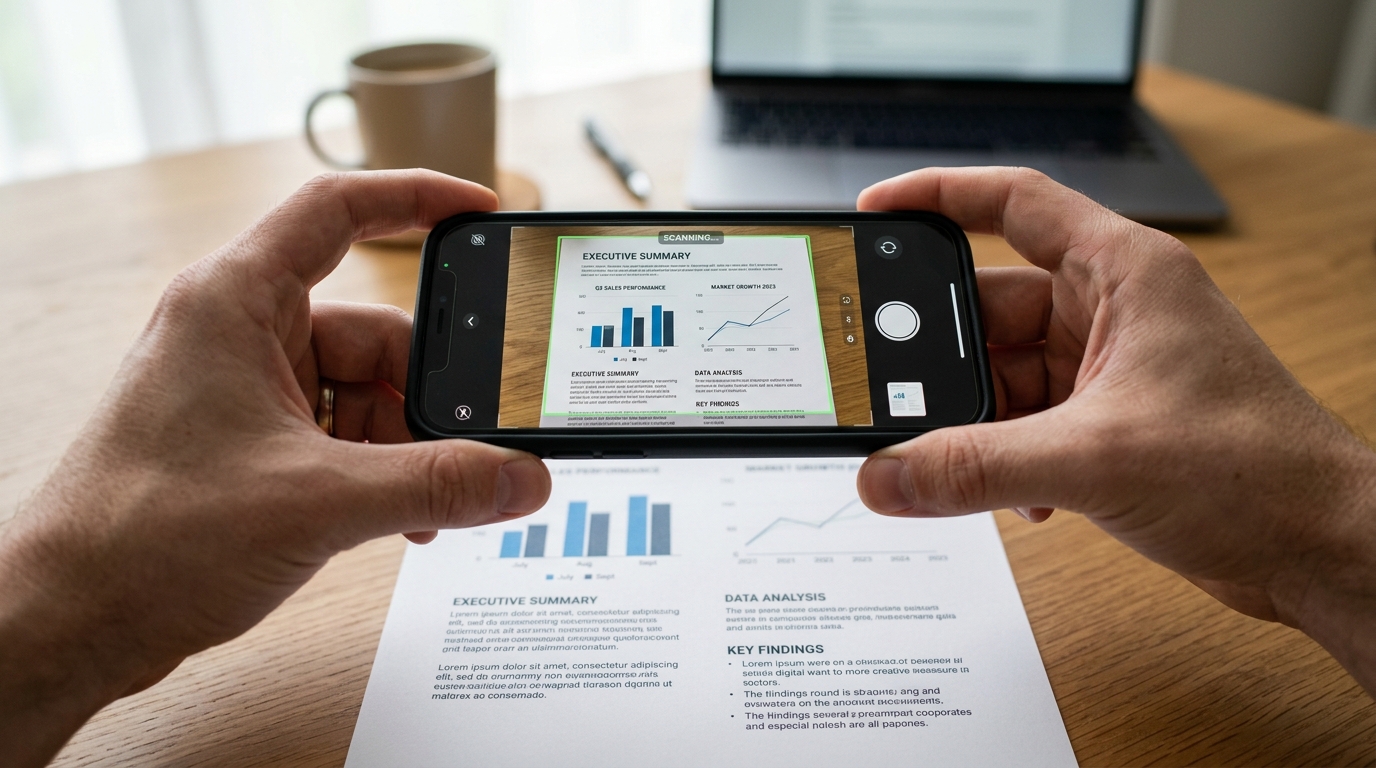
If you are holding a physical piece of paper, do not simply use your default camera to take a picture. Raw images retain shadows, uneven lighting, and massive file sizes that old, legacy receiving machines struggle to process. Instead, you need a dedicated document scanner built into your workflow.
Open the app and utilize the internal pdf scanner function. Lay your paperwork flat against a contrasting background. A quality cam scanner utility will automatically detect the edges of the page, correct the perspective, and convert the image into a high-contrast black-and-white format. This process—specifically executing a proper scan to pdf—ensures that the final output will be legible when printed by the receiving machine. Take the extra five seconds to review the crop; if the edges are warped, adjust them manually before saving.
Step 3: How do you prepare existing digital files for transmission?
Often, you do not have a physical paper at all. Instead, someone has texted you an image of a form, or you have screenshots saved in your gallery. In these scenarios, you must process the files before attempting to send them.
Faxes inherently operate on PDF architecture. If you try to send a raw JPEG, the system has to translate it, which can cause formatting errors. You need to use a feature that handles the jpg to pdf conversion accurately. Within your workflow, select the photos to pdf tool to combine multiple images into a single, cohesive file. This photo to pdf conversion acts as an equalizer. Once you convert to pdf, you lock the formatting in place. Creating clear PDF documents from your photos guarantees that a multi-page contract arrives in the exact order you intended, rather than a scrambled mess of individual images.
Step 4: How do you send and track your paperwork securely?
Once you have a single, clean doc prepared, the actual transmission is the most straightforward part of the process.
Within FAX Send Receive (ad-free) App, select your finalized file. Enter the destination fax number carefully. One common user error I observe in UX testing is failing to include the correct country or area code, which causes an immediate transmission failure. After entering the number, initiate the send. Because you are operating within a private utility, there are no banner ads delaying the network request.

The system communicates directly with the destination hardware. You will receive a status update detailing whether the connection was successful, busy, or failed. Always wait for the final delivery confirmation receipt. This receipt serves as your legally binding proof of transmission, replacing the physical printouts traditional machines generate.
Step 5: How should you file and archive your records?
The final step in replacing hardware is establishing a reliable archiving habit. Once your file is successfully transmitted, do not leave it floating aimlessly in your phone's general storage folder. Use a basic pdf editor or your device's native folder system to rename the file clearly—for example, "Signed_Lease_Agreement_Date.pdf".
If your daily operations require balancing multiple forms of communication, extending your toolset logically makes sense. For instance, teams looking for a secure foundation for overall mobile productivity often rely on dedicated developers. Investigating broader utility providers, such as Codebaker, can provide additional resources like secondary phone numbers and advanced scanning tools that complement your new digital workflow.
Transitioning from a clunky machine to an efficient mobile process is not just about convenience; it is about reclaiming control over your professional data. By following these steps to scan, convert, and transmit securely, you entirely remove the hardware bottleneck from your daily responsibilities.