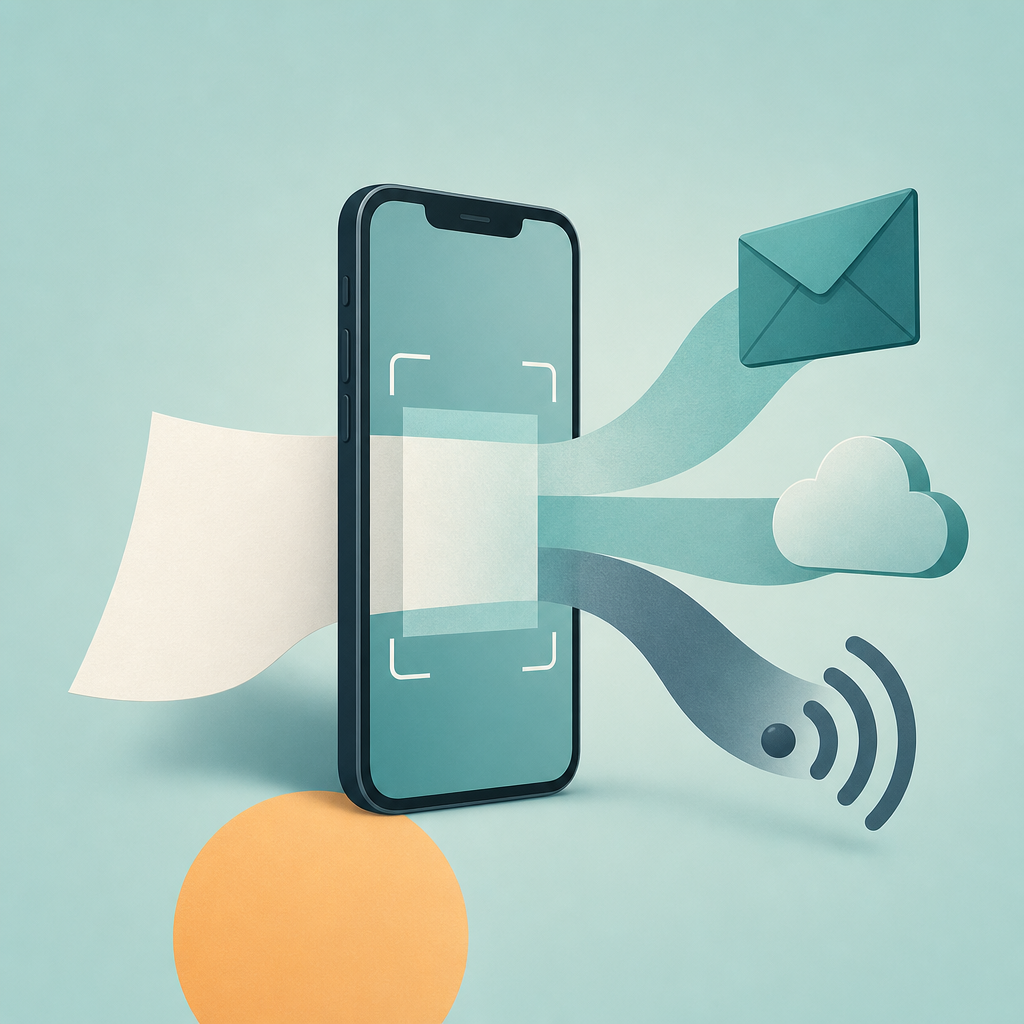
Short answer: Yes. Both iPhone and Android can scan a paper page straight to PDF with no extra hardware. On iPhone, the Notes and Files apps have a built-in scanner; on Android, Google Drive and the Files by Google app do the same. Capture the page, let the app auto-crop and flatten it, save as PDF, then email, upload, or fax that one file.
The mistake people make is scanning the same document three times — once to email it, again to save it, again to fax it. You don't need to. A PDF is a container; once you've captured a clean page, it's reusable. The trick is capturing it well the first time, because a PDF that looks fine on your screen can still fall apart when it gets squeezed through a fax line. That tension between "looks good here" and "survives the trip" is the whole game, and it comes down to a couple of settings most people never touch.
Scan once, use everywhere — the workflow that saves you the rescan
Here's the path I'd actually follow, and why each step matters. The goal is a single PDF that's good enough for the worst destination, so every other use is free.
- Capture on a contrasting surface. Put a white page on a dark table. Edge detection finds corners by contrast; a white page on a white desk forces the app to guess, and it guesses worst on the curled and creased pages you most want to scan.
- Let auto-capture frame it. Apple's scanner (in Notes and Files) and Google's scanner (in Drive and Files by Google) both outline the document and shoot when the page is square to the lens. Hold steady instead of jabbing the shutter.
- Fix the crop before you save. Drag the corner handles to the true paper edge. On a wrinkled page, pull the handles past the wrinkle so the output is a clean rectangle.
- Save as PDF, then reuse it. The same file becomes an email attachment, a cloud upload to Drive or iCloud, and — if someone insists — a fax. One capture, three jobs.
That last point is where the time savings live. A PDF built from a scan carries the page as an image; nothing about emailing it changes the file, so there is no reason to recapture for each channel. The only destination that imposes new rules is fax, and that's worth its own section.
What a PDF actually is — and why fax breaks the polite version of it
PDF is an open standard, ISO 32000, and it's deliberately format-agnostic: a single PDF can hold full-color photos, sharp vector text, and grayscale scans side by side. Your phone's scanner usually saves a color or grayscale raster image inside that container. On screen, that's lovely.
A fax can change the appearance of the original scan. ITU-T T.4 includes multiple resolutions and optional colour; classic black-and-white output is one case, rather than a universal fixed 200-dpi format. Check the supported service and recipient settings.
The practical risk is legibility after conversion. Preview fine text, handwriting, and coloured marks before sending, and inspect a received copy when the recipient can provide one. A local preview is not proof of the final output.
The settings cheat-sheet: one PDF that survives both the screen and the fax
You can't tune every variable on a phone scanner, but the two that matter most are usually exposed: the capture mode (color vs. grayscale vs. black-and-white) and the crop. Here's how I'd set them depending on where the file is going.
| Destination | Capture mode to use | Why | Watch out for |
|---|---|---|---|
| Email or cloud upload only | Color or grayscale | Keeps signatures, stamps, and highlighter legible; renders fine on any screen | Larger file size; fine for attachments, not a real problem |
| Fax (now or maybe later) | Black-and-white "document" filter | Helps check how faint text behaves in black-and-white; the actual fax result depends on transmission settings | Faint gray pencil or light highlighter can disappear — darken it or re-scan |
| Don't know yet | Capture in grayscale, keep the original | You can re-export a B&W copy for fax later without re-shooting the page | Save the source scan; don't only keep the flattened fax version |
Choose capture quality that preserves the text and important details. The fax system may convert the file according to its supported formats; a universal 200-dpi resampling rule is not justified. Keep the legible original PDF and follow the recipient’s requirements.
A word on the black-and-white preview — use it as a proof, not an afterthought
This is the single habit that prevents the dreaded "please resend." Before you save the version you'll fax, flip the scanner into its black-and-white document mode and look at it. If the text holds together there, it'll hold together on the recipient's machine. If letters break up or whole lines fade, that's your warning to brighten the original or re-shoot under better light — not to send it and hope.
When you need a fax, not just a PDF — and where the apps differ
Be honest about the request first. A lot of "send me a fax" really means "send me a clean copy," and email or an upload link is accepted. If no one specifically requires a fax number, you don't need a fax app — the built-in iPhone and Android scanners, or a dedicated scanner app, already do the scan-to-PDF job. If scanning to PDF is your whole need, a focused document scanner like Scan Cam handles multi-page PDFs without the fax layer. Reach for scan-to-fax only when the other side genuinely wants it transmitted to a fax number — and in that case, your phone can do that too, sending the same PDF over a fax gateway.
FAQ
Can I scan a document to PDF on my iPhone without any app downloads?
Yes. The iPhone Notes app and the Files app both include a document scanner, per Apple's iOS documentation. Open a note or a folder, choose the scan option, capture the page, and you can save or export it as a PDF. No third-party app and no scanner hardware are required.
How do I scan to PDF on Android?
Use Google Drive's scan feature or the Files by Google app, both documented by Google. Tap the scan/camera option, capture the page, adjust the crop, and save. Drive saves the result as a PDF you can then share, store, or attach to an email.
Will the same PDF work for email and for fax?
A single source PDF may work for more than one channel, but the receiving system can change its appearance. Preserve colour where it matters and check legibility before faxing.
Does a higher DPI scan make my fax clearer?
Higher capture resolution can preserve source detail, but does not guarantee a sharper delivered fax. Contrast, cropping, supported output settings, and the recipient’s equipment all matter.
How do I keep a scanned PDF private?
Scanned documents are often sensitive — IDs, medical forms, contracts. Don't leave the image sitting in a shared photo roll, confirm any recipient address or fax number before sending, and delete copies you don't need. If you handle regulated data, follow your own organization's policy; this is general guidance, not legal advice.
What I'd do
Scan the page once, in grayscale, on a dark surface, and fix the crop on the spot. If the file is only going to email or the cloud, you're done. If there's any chance it gets faxed, flip to the black-and-white document filter, confirm the text still holds, and keep that as your fax-ready copy — that one check is what stands between a legible page and a returned smudge. And if the request was only ever for a clean copy, skip fax entirely and just send the PDF. Fax Scan and Scan Cam are built by CodeBaker, which makes a small family of phone-first utilities for exactly these "I need this done now, on my phone" moments.
For the related workflow and its limits, read: Is Sending a Fax from Your Phone Secure? HIPAA, Encryption, and What Actually Happens to Your Document.