
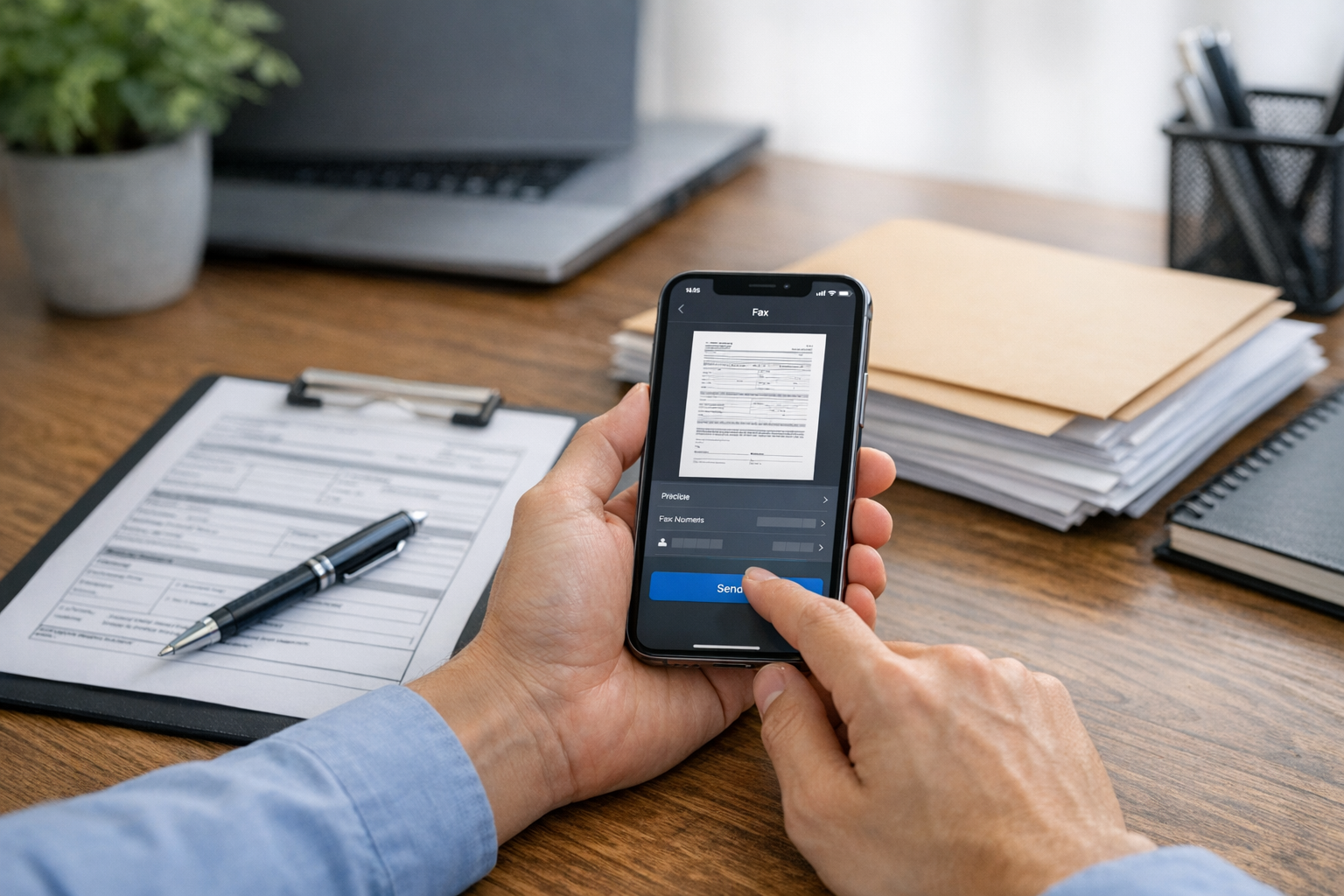
There is a simple reason fax apps still matter: some offices, clinics, insurers, schools, and legal departments still ask for documents by fax. The problem is that most people no longer keep a faxmachine at home, and very few want to hunt down a print shop just to send one page. That gap is exactly where FAX Send Receive (ad-free) App fits. It gives mobil users, especially those on i phone, a way to prepare, send, and receive faxed documents from a device they already carry every day.
This is not really about replacing every office workflow. It is about solving a very specific everyday problem: you have a form, a signed page, a photo, a pdf, or a doc, and someone insists on fax. Instead of relying on a physical makinesi yerine a phone-based workflow, users can scan, convert, attach, and send files from one place. For people who deal with occasional paperwork, that is usually the difference between “I’ll handle this now” and “I’ll deal with it later.”
Why the old faxmachine problem still exists
People often assume fax belongs to the past until a real situation proves otherwise. A doctor’s office asks for records. An employer requests a signed onboarding form. An insurance company wants supporting pages. A government office still lists fax as an accepted submission method. In these moments, the problem is not technology in general. The problem is access. Most kullanıcılar do not own a physical machine, toner, phone line, or scanner.
A traditional setup asks for several steps: print the file, sign it, scan it again, feed it into a faxmachine, dial the number, and wait for confirmation. A mobile workflow cuts out most of that friction. If the file already exists on your phone, you can work from that. If it is on paper, the app helps you capture it and turn it into something fax-ready.
What FAX Send Receive (ad-free) App is for
At its core, this app is a mobile tool for fax gönderme alma. It is designed for people who need to send or receive faxed pages without setting up a full office device. The main appeal is straightforward: your phone becomes the practical alternative to a dedicated faxmachine.
That matters for a few common reasons:
- You only send faxes occasionally and do not want a separate machine.
- You work remotely and need to handle paperwork away from the office.
- You receive forms as email attachments and need to fax them quickly.
- You have paper pages that need to be scanned and sent from one device.
- You prefer an ad-free environment when dealing with sensitive documents.
For many people, the biggest benefit is not that mobile fax feels new. It is that it removes unnecessary steps. If you already use your phone for email, file storage, signatures, and photos, then sending a fax from the same device is simply more practical.
Who this app is most useful for
FAX Send Receive (ad-free) App is not only for office administrators. It is useful for anyone who runs into document-heavy tasks and needs a reliable mobil option.
1. i phone users who need occasional fax access
Many people search for ways to send a fax from an i phone because they do not need a full business machine. They just need to handle one form today. This includes students, freelancers, job seekers, tenants, and patients.
2. Remote workers and small business owners
If you work outside a central office, paperwork still follows you. Contracts, invoices, identity forms, and signed pages may need to be sent quickly. A mobil fax workflow is often faster than searching for a physical service point.
3. People dealing with healthcare, insurance, or legal paperwork
These categories still depend heavily on fax in some regions. Users may need to submit authorizations, claim pages, medical records requests, or signed letters. In practical terms, the app helps bridge the gap between modern phone files and older office requirements.
4. Anyone who already scans paperwork on their phone
If you have used a cam scanner, a scanner app free tool, or something like adobe scan or even misspelled searches such as adope, the learning curve is usually short. The logic is familiar: capture the page, crop it, clean it up, save it as a pdf scanner output, and then send it.
Users who want a dedicated document capture workflow can also look at a companion-style scanning tool such as Scan Cam: Docs PDF Scanner App for scanning and PDF preparation before faxing files.
What first use usually looks like
The first session with a fax app is usually tied to a real deadline. That is why the early experience matters. Most people open the app because they already have something specific to send or receive. Here are the most practical first-use scenarios.
Scenario 1: Sending a signed paper form from your phone
This is one of the most common cases. You receive a paper form, sign it, and need to fax it back.
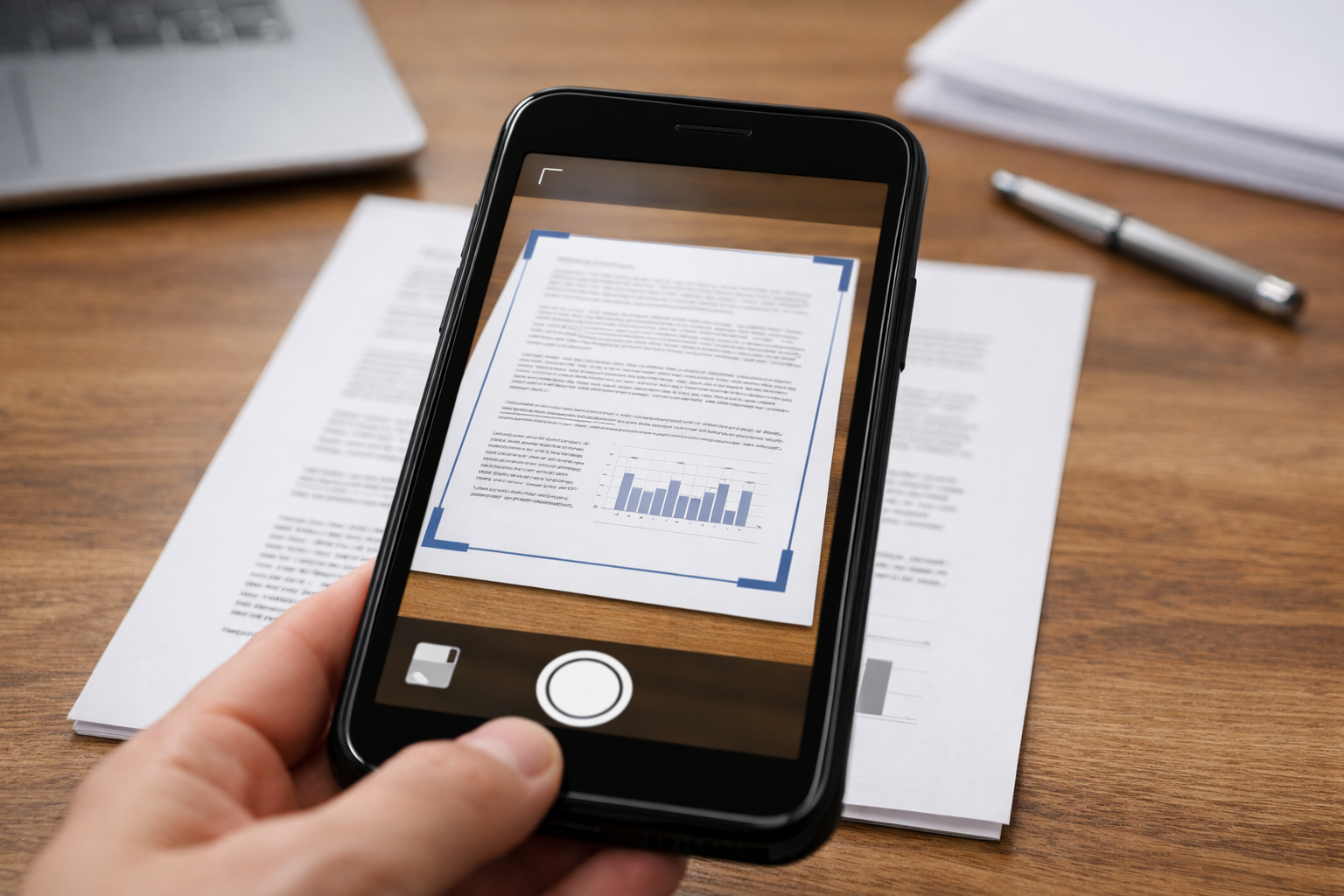
- Open the app and capture the page with your camera.
- Adjust edges so the document looks like a clean scan.
- Review brightness and readability.
- Save it as a fax-ready file, usually as scan to pdf.
- Enter the fax number, add a cover page if needed, and send.
This is where the overlap with a cam scanner workflow becomes clear. The difference is that the process does not stop at scanning. It continues directly to fax delivery.
Scenario 2: Faxing an existing PDF or JPG attachment
Sometimes the file is already digital. You may have a pdf, jpg, or another file in email, cloud storage, or your phone gallery. In that case, you skip the camera step and upload the document directly. This is useful for tax forms, school forms, statements, and ID-related pages.
Some users also need light file handling before sending, such as combining pdf photos, converting photo to pdf, or using a simple pdf converter. The goal is not advanced editing. It is making sure the receiving side gets a readable, correctly ordered file.
Scenario 3: Receiving faxed documents without a physical machine
The alma side is often overlooked. People focus on sending, but receiving matters too. If an office needs to fax records or confirmations back to you, using an app means you do not need to stand near a physical machine waiting for pages. For remote workers and individuals dealing with time-sensitive paperwork, that can be much easier to manage.
Scenario 4: Handling urgent paperwork while away from home
Practical example: you are traveling, sitting in a hotel lobby, or commuting, and someone asks for a faxed copy the same day. A phone-based setup can turn that from a major interruption into a short task. That is where mobil convenience becomes real: not as a feature list, but as the ability to act immediately.
How it compares to scanning-only tools like cam scanner or adope-style search intent
Many users begin with a scanning mindset. They search for a cam scanner, a free scan app, or terms connected to Adobe products, including misspellings like adope. That search makes sense because scanning is usually the first half of the job. But faxing adds another requirement: actual transmission to a fax number.
A scanning app helps you create cleaner digital documents. A fax app helps you deliver those documents through a channel some organizations still require. If your task ends at creating a neat PDF archive, a standard scanner may be enough. If your task ends only when the other party receives the fax, you need the sending layer too.
That is also why terms such as pdf editor, pdf converter, and scan often appear around fax-related searches. People are not searching for isolated features. They are trying to complete a paperwork process from start to finish.
What to check before sending your first fax
First-time users often run into a few avoidable issues. Before you send anything important, it helps to check the basics:
- Readability: make sure signatures, dates, and small text are sharp.
- Correct page order: especially if you combine multiple documents.
- File type: use a clean PDF when possible, though JPG can work for single-page items.
- Fax number format: confirm country code and area code if needed.
- Cover page requirements: some offices expect a basic cover sheet.
If you regularly move files between communication tools and document workflows, a related utility such as Codebaker’s mobile app portfolio can also be useful for seeing how scanning and faxing tools fit together.
Why an ad-free fax experience matters more than it sounds
When people deal with paperwork, they are often handling medical forms, financial records, identity pages, or time-sensitive requests. In that context, an ad-free setup is not just about aesthetics. It helps keep the process focused. Fewer distractions mean less chance of tapping the wrong thing, missing a page, or losing track of what you are sending.
That matters most during stressful tasks: a last-minute insurance request, a signed rental agreement, a school form due today, or a records request you have been postponing because the logistics felt annoying.
The simplest way to think about this app
FAX Send Receive (ad-free) App is for the moment when a person needs fax capability but does not want the burden of a physical machine. It serves users who live on their phones, manage files digitally, and still encounter organizations that rely on fax. For a modern user, that is the real value: not novelty, but access.
If you have ever searched for a faxmachine alternative, a mobil fax option, a way to send from an i phone, or a path from cam scanner-style scanning to actual fax delivery, this is the problem space the app addresses. It helps turn paper pages, PDFs, and phone-captured documents into something usable the moment a form has to be sent or received.